Breaks
Screen Breaks
Choose how you work, how long you focus and how long each break lasts.
Screen breaks are the heart of Pauselle. Pauselle counts your work time, and when it reaches the interval you set, it shows the break screen. After the break, the next session starts.
You can find everything on this page in Settings → Screen Breaks.
Focus modes
Pauselle has three modes. Change the mode under Settings → Screen Breaks → Focus mode, or from Quick Look. You can only switch while Pauselle is stopped: stop it first, or confirm Switch mode in Quick Look, which ends the current session and records it as interrupted.
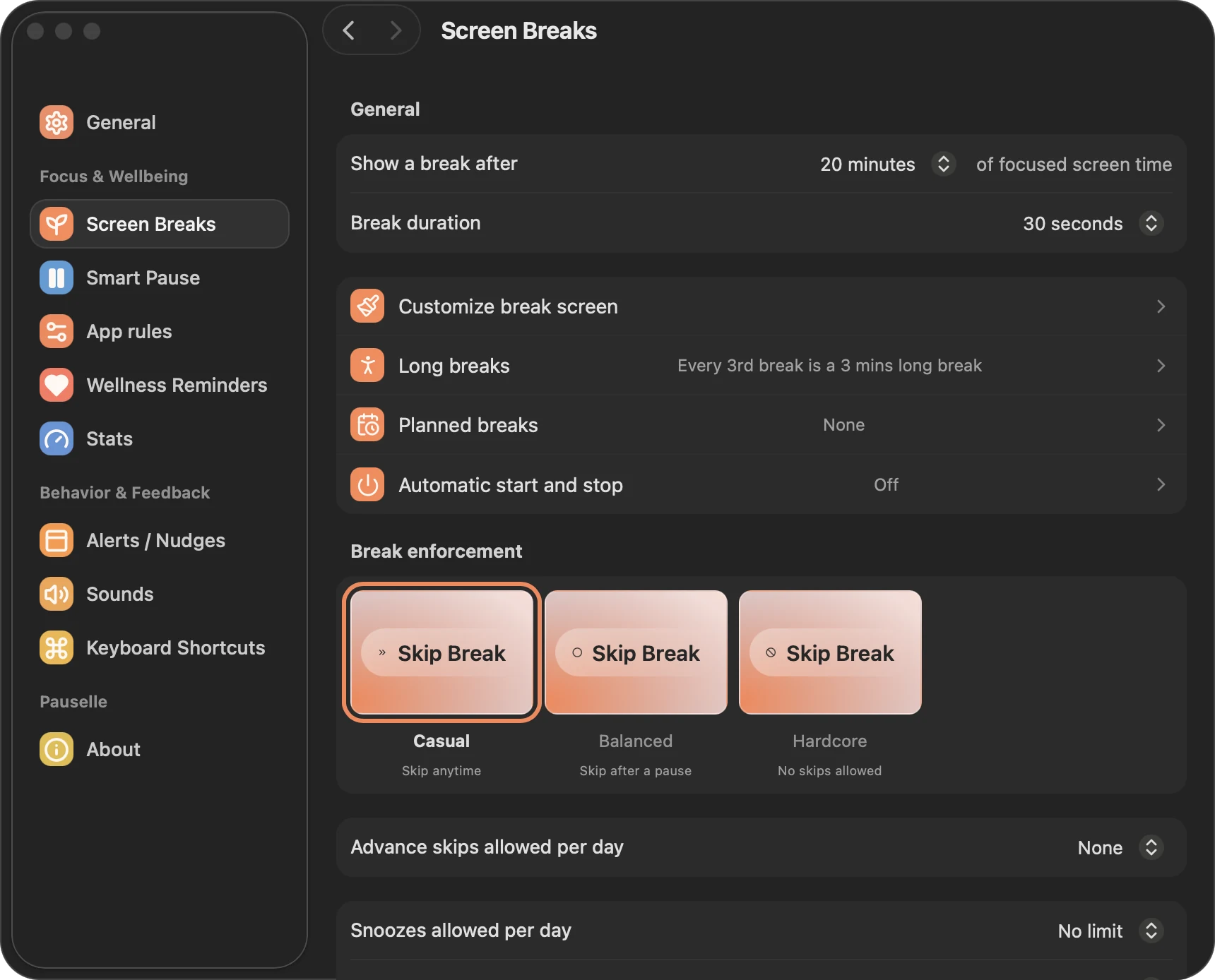
Screen Breaks (default)
Regular, short breaks for your eyes. Work and breaks follow each other automatically.
| Setting | Default | Range |
|---|---|---|
| Show a break after | 20 minutes | 10, 20, 30, 45 minutes, 1 hour, or a custom value from 1 to 90 minutes |
| Break duration | 20 seconds | 20, 30, 45 seconds, 1, 2 or 3 minutes |
| Long break | 3 minutes, every 3rd break | 1–30 minutes, every 2–8 breaks |
Pomodoro
Focused work sessions with longer breaks.
| Setting | Default | Range |
|---|---|---|
| Focus duration | 25 minutes | 10, 20, 30, 45 minutes, 1 hour, or a custom value from 5 to 90 minutes |
| Break duration | 5 minutes | 1, 2, 3 or 5 minutes |
| Long break | 15 minutes, every 4th break | 5–60 minutes, every 2–8 breaks |
By default you start each Pomodoro phase yourself: when a focus session ends Pauselle waits for you to begin the break, and when the break ends it waits for you to start the next session. Turn on Automatically start the next Pomodoro phase to let Pauselle move between work and breaks on its own.
Free Focus
No countdown. Pauselle keeps time and you take a break whenever you like from the menu. The break length is 5 minutes by default (1, 2, 3 or 5 minutes). Long breaks and break reminders do not apply.
Saving durations
Durations are saved automatically a moment after you change them. If Pauselle is in the middle of a break, that break keeps its length; the new values apply from the next one.
Long breaks
Open Screen Breaks → Long breaks to turn them on or off and to set their Duration and Frequency. The row on the Screen Breaks page summarises your choice, for example Every 3rd break is a 3 mins long break. Long breaks are on by default.
Waiting for a quiet moment
When Smart Pause → Wait for a quiet moment is on (the default), a break that is due will wait while you are typing, dragging something or dictating. The menu bar shows Typing, Dragging or Dictating while it waits, and the break appears as soon as you stop. See Smart Pause.
Taking a break early
You do not need to wait for the timer:
- Start this break now in the menu starts the upcoming break immediately.
- Take a break for starts a break of 1, 5, 10, 15 or 30 minutes, or a custom length from 30 seconds to 2 hours.
- Keyboard shortcuts can start a short, long or custom break. See Keyboard shortcuts.
Related
- Break enforcement: how easy it is to skip or snooze.
- Planned breaks: breaks at fixed times of day.
- Office hours: only run Pauselle during your working hours.